
How the kanban board works
A quick walkthrough of the free RenoSheets kanban board — from a fresh empty board to a project you can hand off.
Overview
The board is four columns — Planning · Quoted · In Progress · Done — and a stack of cards. Move a card between columns with the ← → arrows on the card, or drag it up and down to reorder within its column. Every card holds a task name, optional colour, due date, and an attached materials sheet from any calculator. Everything is stored in your own browser — no account, no server, no limits.
- 1
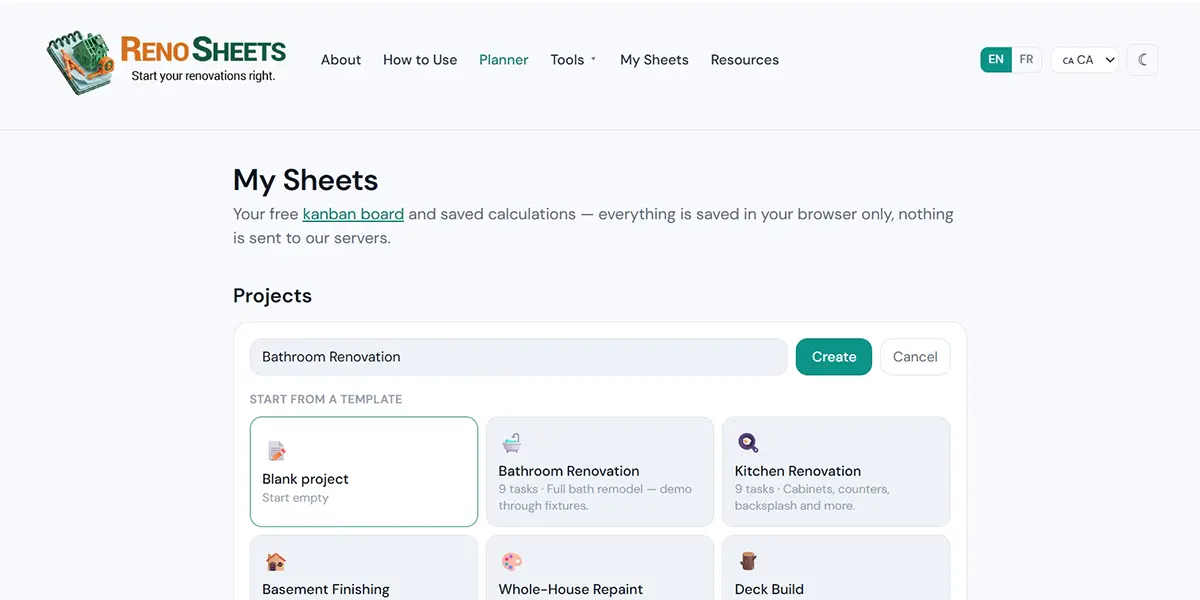
Create a board — no signup
Open the page and you are already in. Boards live in your browser only; nothing is uploaded.
- 2
Add task cards
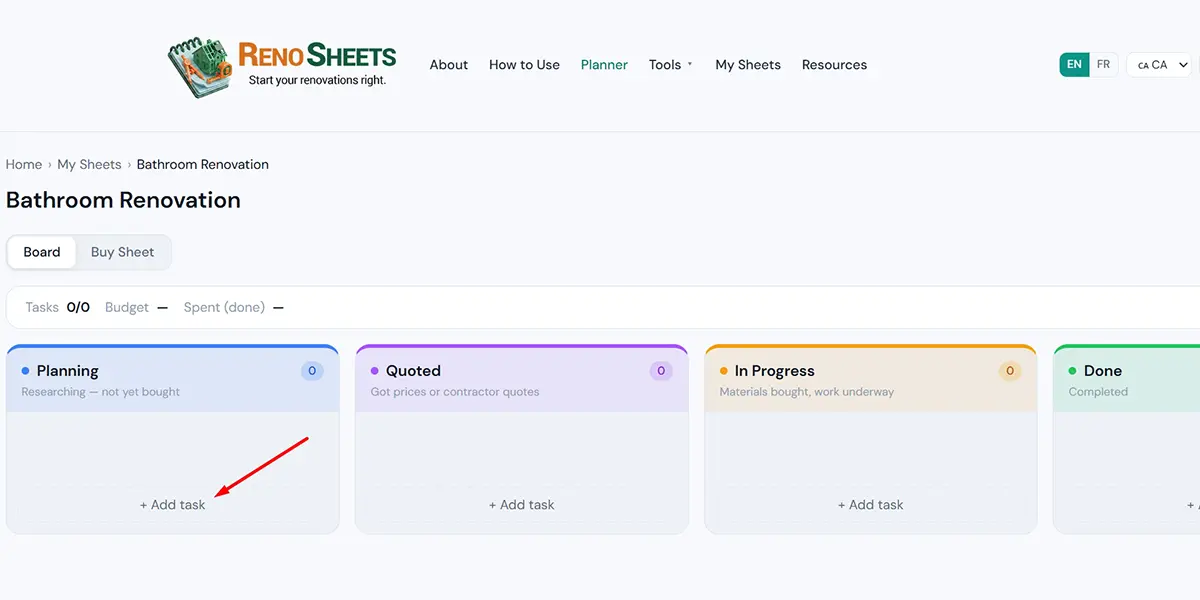
Click "+ Add task" in any column. Give the card a name, pick a colour, set a due date, and you are good.
- 3
Move cards between columns
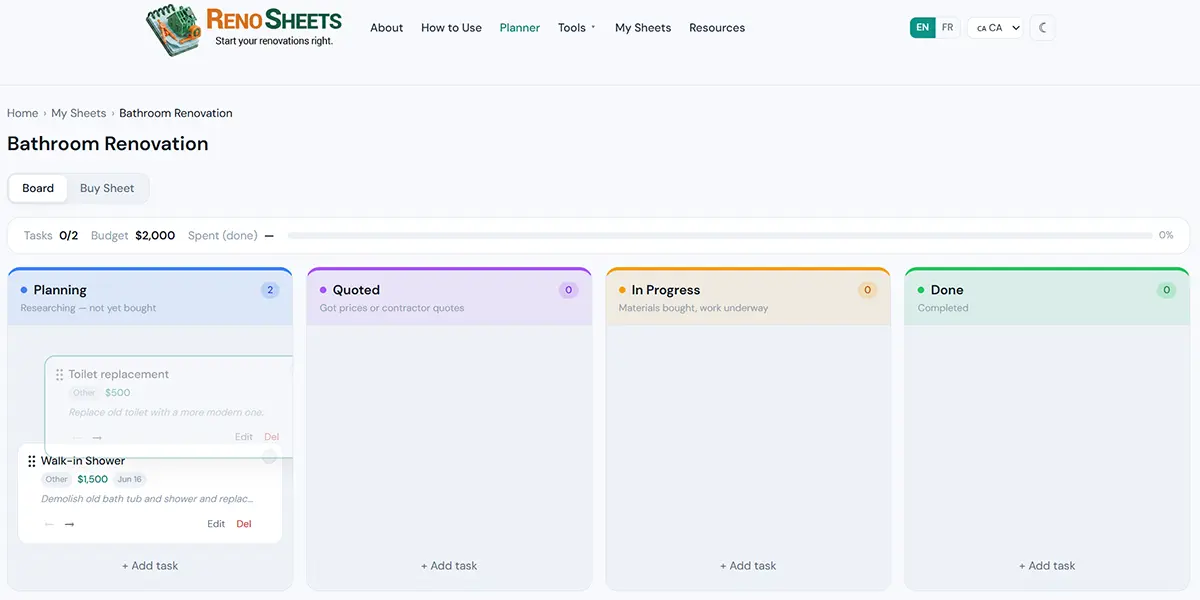
Use the ← → arrow buttons on each card to step it through Planning → Quoted → In Progress → Done (and back). Drag-and-drop reorders cards up and down within the same column.
- 4
Attach a saved materials sheet
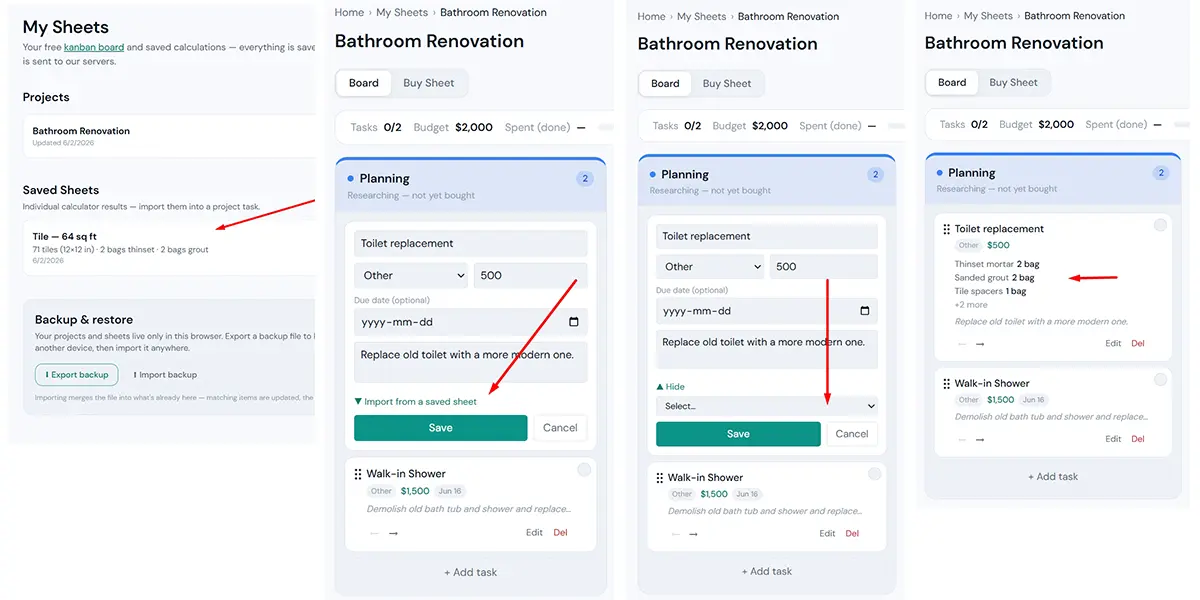
Once you have saved your calculated sheets from the calculators you can attach them to each task within the project planner. Just click "Import from a saved sheet" from within your task and select the sheet. The materials list will then appear within that task.
- 5
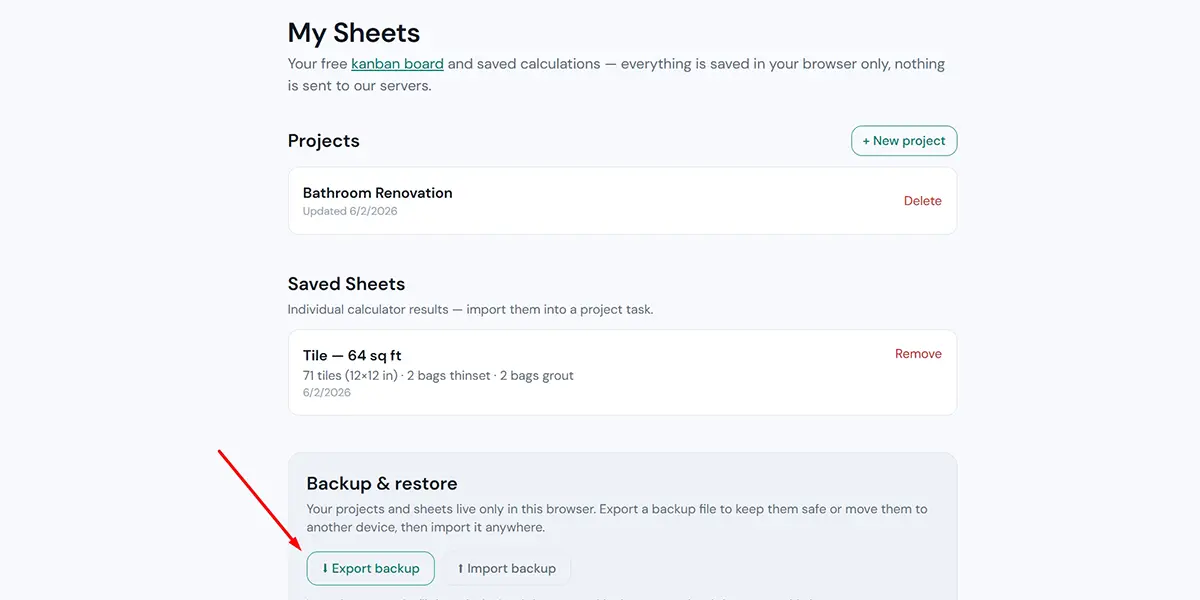
Back it up or move devices
Export everything to a single file. Import on another browser or device to restore — your data, your control.
Ready to try it?
Open the board in your browser — no signup, free forever.